Note: The existing partner portal at https://everychildtn.powerappsportals.com/ will still be available until May 1, 2026.
- Go to www.everychildportal.org, add your email address, and click “Next”
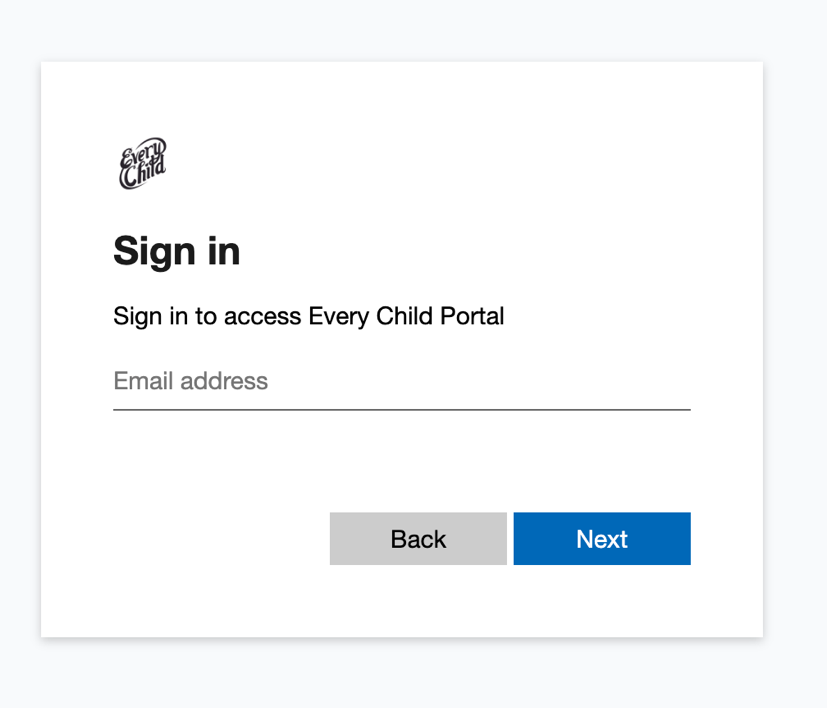
- Do NOT enter a password. Click “Forgot password?”
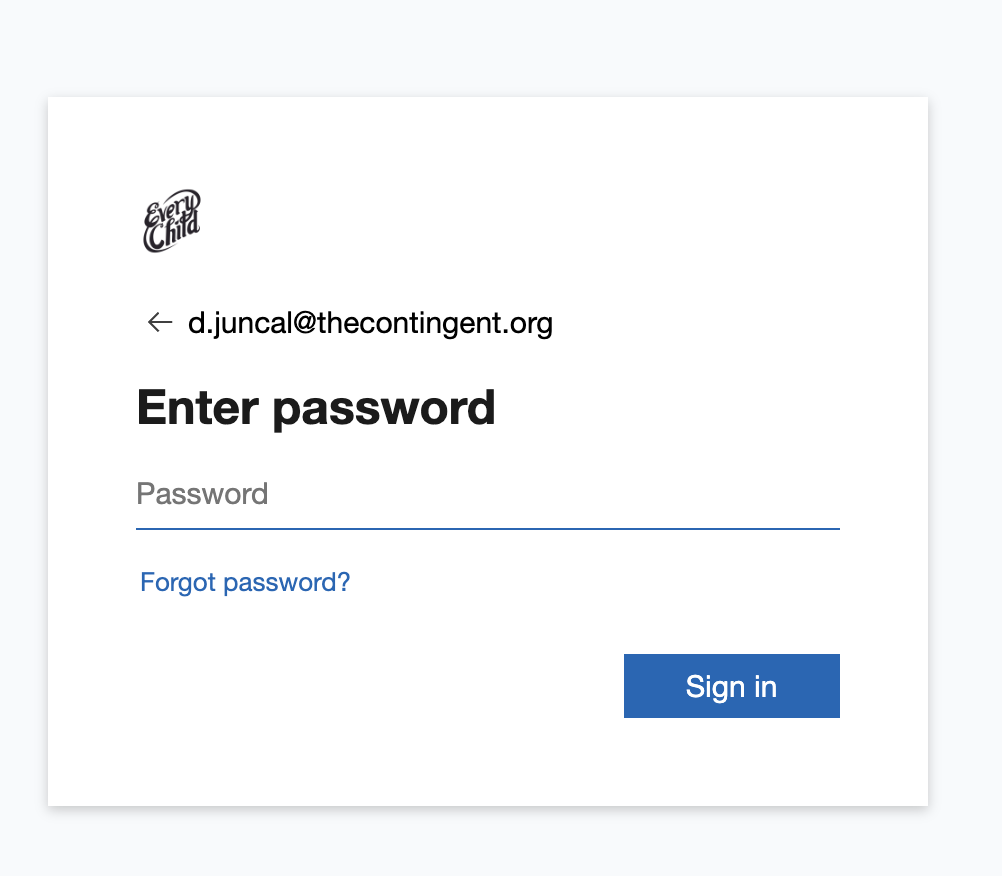
- Click on the text that says "Email code to…"
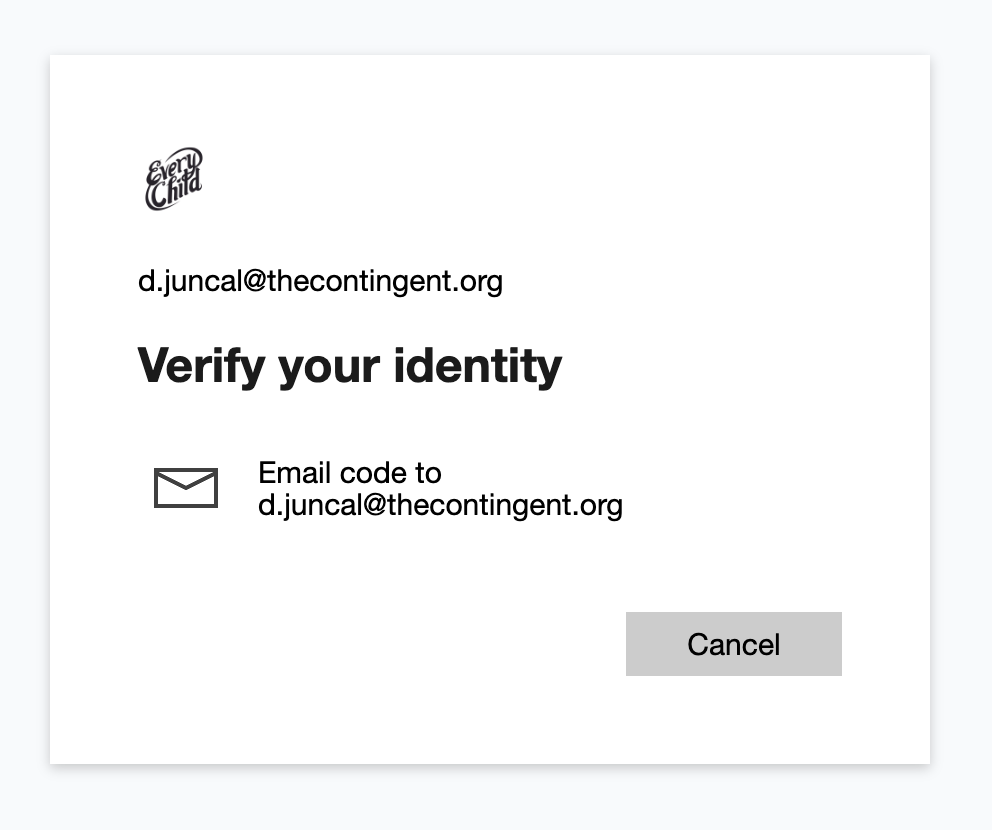
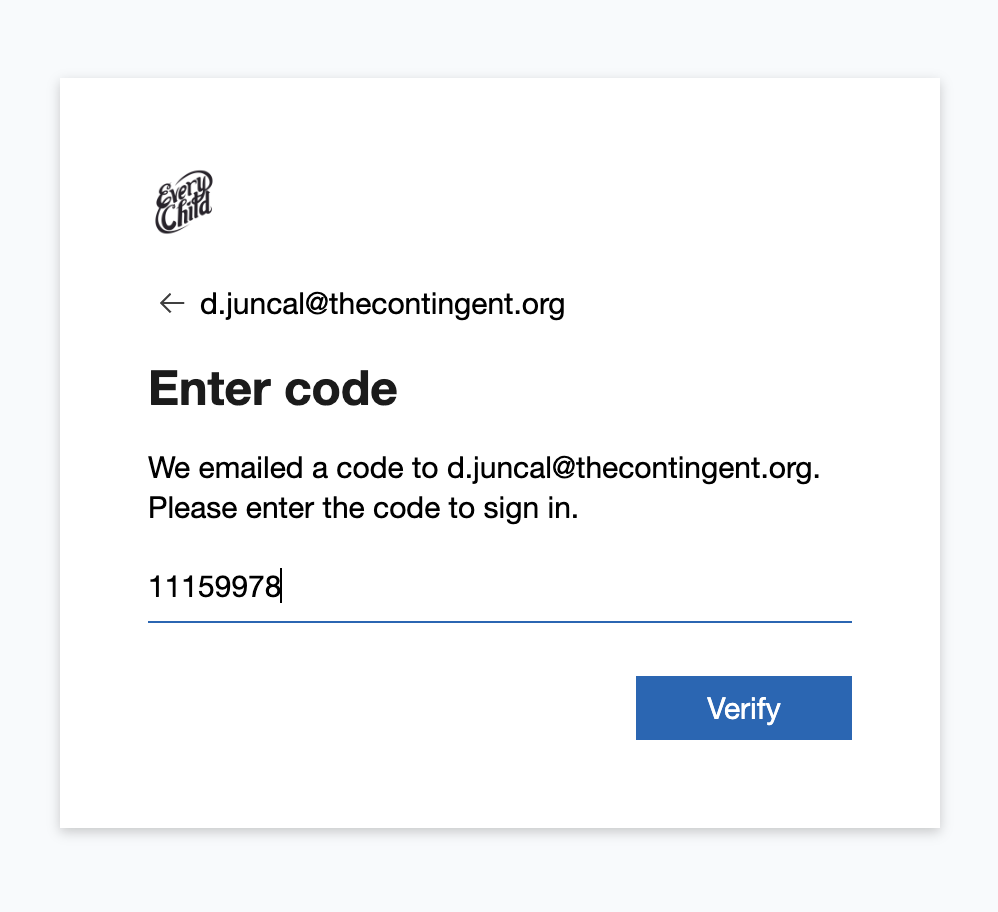
- You will receive an email with a subject like "Your Every Child Portal account verification code” from “Every Child Portal (via Microsoft)” with a numeric code. Go to your email inbox, copy the code, and paste that numeric code to the website and click “Verify"
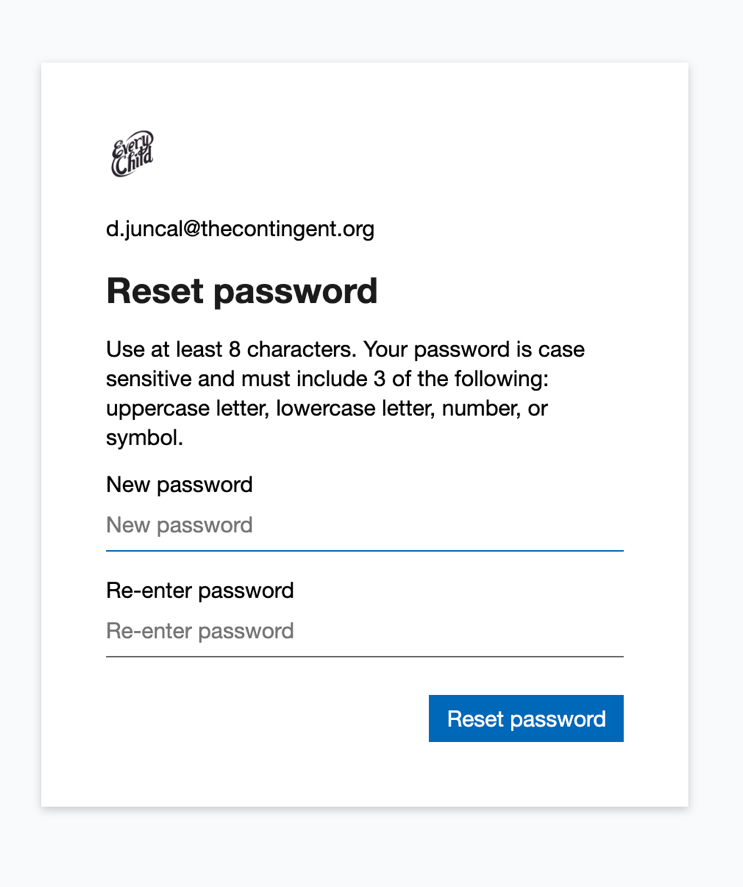
- Create a new password. Make sure it includes 3 of the following: uppercase letter, lowercase letter, number, or symbol. Click “Reset password”
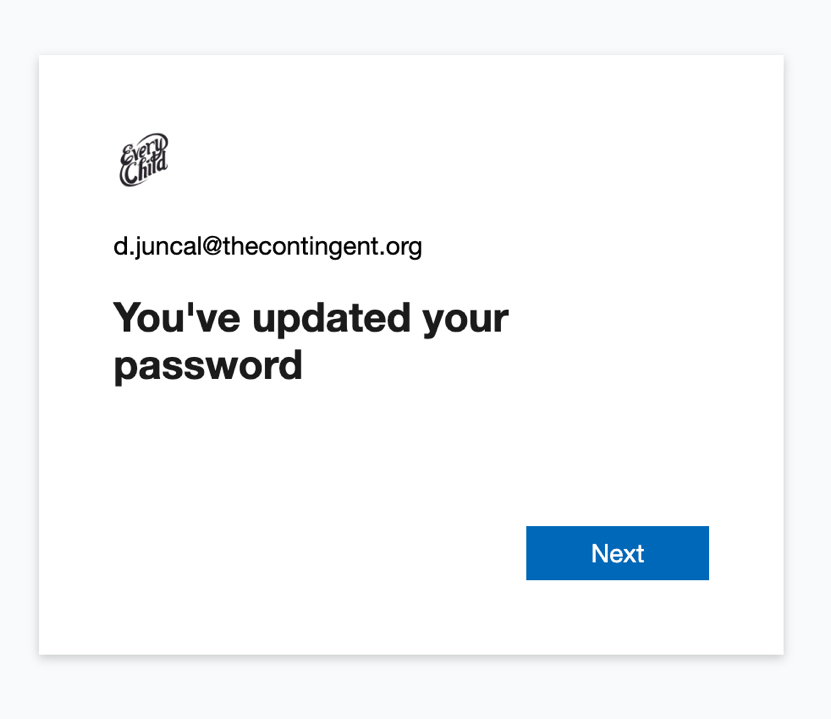
- You will see a password confirmation. Click “Next” to continue.
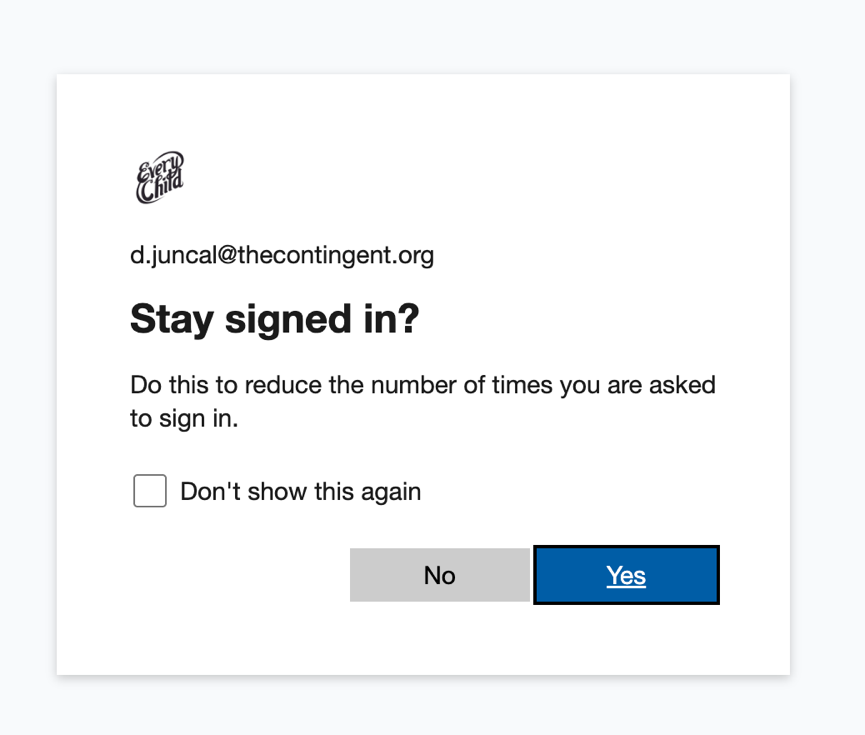
- You will be asked if you’d like to stay signed in. Either option works (“Yes” or “No”) works, as is just based on your preference. Click on either button.
- You will be directed to the homepage of your portal, which displays all leads that do not have a lead owner assigned to them.
Was this article helpful?
That’s Great!
Thank you for your feedback
Sorry! We couldn't be helpful
Thank you for your feedback
Feedback sent
We appreciate your effort and will try to fix the article